Mobile computing is all around us. You don’t just have to read the EDUCAUSE Mobile IT in Higher Education 2011 report or glance over the Cell Internet Use 2012 from the Pew Internet & American Life Project to see the rise of mobile technology on campus. More of students, faculty, and staff in higher education are plugged into smartphones, using tablets, and access more online through their mobile device.
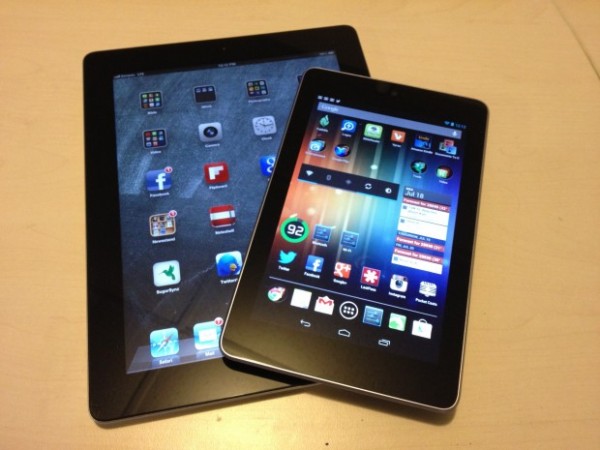
Like other entities in higher education, our advising office is considering what it would be like to use a tablet (iPad or Nexus 7 seem to be the front runners) in our daily working lives. I was charged with the task to identify potential uses and reasons why a tablet would be helpful for supporting students and our professional lives on campus – and also things to consider when implementing mobile technologies.
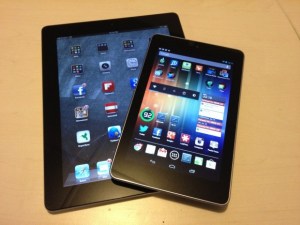
Image c/o EdTechMag
With the quick response from the fantastic NACADA Technology in Advising Commission Facebook Group, we crowdsourced helpful resources and ideas around using mobile technology. Here are few* potential uses of mobile technology for academic advising – the WHY & HOW we would use tablets :
- Navigation of Online Campus Resources – share for students & others at appointments, events, for recruitment, resources fairs & more!
- Increased Web Resources – more of our advising resources & job aids (systems, notes, etc) have moved online. The access to information and systems is critical for our daily work environments in higher ed.
- Sustainability – Increasingly our advising materials are moving online and our campus is moving to a paperless environment. Instead of printing an agenda, file or document – you can view it on your tablet.
- Improvement to Advising Process – Currently using a PDF advising document – to transition to an online web form that can be completed and emailed to the student & tracking
- New Student Orientation – providing current information when advising, catalog, etc. as you are on the go and at different events & happenings on campus during the summer
- Instruction & Presentation Needs – able to plug & play notes, PPT, web resources, & applications during a class, conference session or training
- Ease of Registration – sometimes the process for online registration and class search needs some show & tell – advisors could help students waiting for appointments or reach out to students to enroll during peak times in other spaces on campus
- Collaborative Communication – shared notes, capturing information from meetings & reporting back on events, webinars, or training on/off campus
- Getting Social [Media]: ability to capture events on video, record audio for podcasts, get others connected to these social spaces (show them) & the ability to post, archive, save & share with the campus community in real time. Have you thought about your social media management lately?
- Assessment – surveys, evaluations, on-the-spot feedback, or other ideas for review to collect student information and campus data.
- Marketing & Promotion – create magazine style brochures, design better promotional materials & share presentations which are all electronic => ability for direct marketing at events/fairs/appointments that can be sent to other mobile devices or email accounts. [Here’s a video with a few examples from our Career Services friends as well & a great NACE article on the topic from @garyalanmiller.]
- There’s An App for That – web applications can be used from the current Apple or Android market OR you can create your own app that shares helpful resources.
- Creativity – inspires staff to consider other means, methods, and practices for better serving our students, getting their administrative tasks accomplished, and then some!
*This list is not extensive or all-inclusive. I appreciate and welcome any and all ideas for other uses for tablets for academic advising or other higher education functions on campus.
For those of you who are already using a mobile device, here are some “procedure/protocols” for iPads in Office shared by the current NACADA President, Jennifer Joslin [Thanks!!]:
iPad Procedures and Things to Know
How to set up your iPad:
There are instructions inside the box; open the iPad box and get everything out.
You will need an iTunes account. And you’ll need to make sure iTunes is installed with the latest version on your computer. {Insert Your Office Supply Purchaser’s Name Here} can help with the approvals you need for this. (If you already have an iTunes account for personal use, you can just use that. You do not need a separate account unless you want one.)
Follow the on-screen instructions. Do register your account under your name, but use the {Insert Your University E-mail Address} in the contact information. Do not download the “Find my iPad” app.
You can now sync your apps, music, etc., as desired.
Please set up the passcode security feature (in Settings > General > Passcode). For extra security turn off the Simple Passcode option on this page, which permits the use of longer (i.e. more secure) passcodes. It is also recommended to turn on the Auto-Lock feature on this page. This makes it so you will need to enter the passcode after the iPad is idle for a preset period of time. Shorter times are more secure.
{Insert Your IT Support Area Here} can help you sync your {Insert Your Preferred Client’s name} email, calendar and contacts to your iPad.
Important things to keep in mind:
The iPads are intended for work purposes. Please use them appropriately. There are many apps you can use for work that are free. Some good examples of this are iBooks, Evernote, Dropbox, Big Calc Free, the Oregon App, Facebook or Flipboard for Facebook, and either Twitter or Hootsuite for Twitter. If you would like additional apps on your iPad, it is your responsibility to pay for your own apps.
It’s important that we are careful about use of data. Sometimes you will use the VPN to access {Insert CRM/CMS, degree tracking, campus portal, and/or advising notes software of your campus here} to access a student’s record. It’s important to delete those screens when you finish for the day. Since accessing the web is very easy on the iPad (and there is no further security), it’s important not to leave student data readily available.
To set up the VPN follow this link: {Insert Your VPN URL Here}
{Insert Your Office Supply Purchaser’s Name Here} will assist us with labeling each iPad for inventory and tracking purposes. We have ordered cases and clear protective screen covers for daily use. We have also ordered a few of the attachments that will allow us to use the iPad for presentations.
If you have an iPad 3G (Directors), you must purchase your own data plan.
Do you have tips for using mobile technology on campus? Suggestions for protocol and use in the office for your staff/faculty? Ideas on how to use tablets for your work area in higher education? Please share your ideas and how you use your mobile technology on your college/university campus.



 techKNOWtools
You must be logged in to post a comment.